
Settings
Open the Settings panel with Cmd+, or from the menu bar via Spectra > Settings.
The panel has three tabs: General, Appearance, and Font.
General
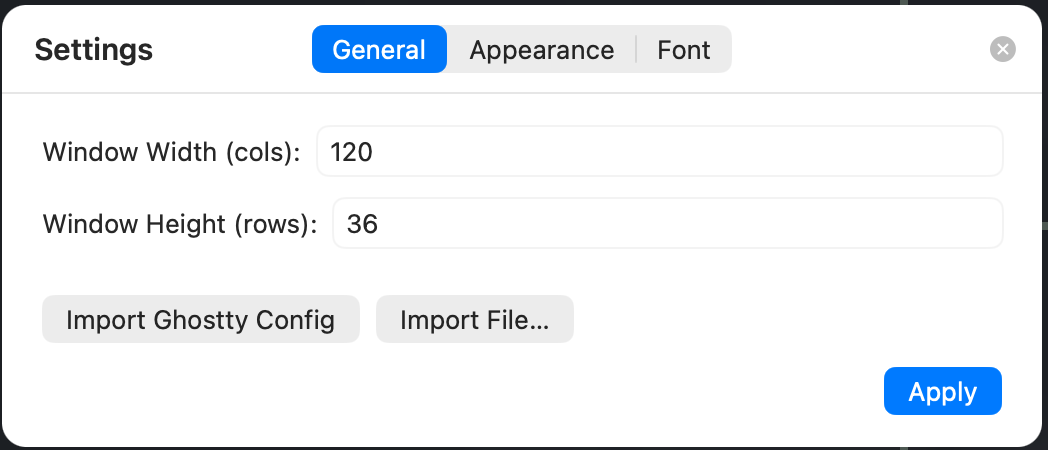
Configure window behavior and import options:
- Window Size — set the default width and height for new windows.
- Import Ghostty Config — migrate your existing Ghostty configuration into Spectra with one click. Useful if you are switching from Ghostty and want to keep your keybindings, font, and theme.
- Import File — load a configuration file from disk.
Appearance
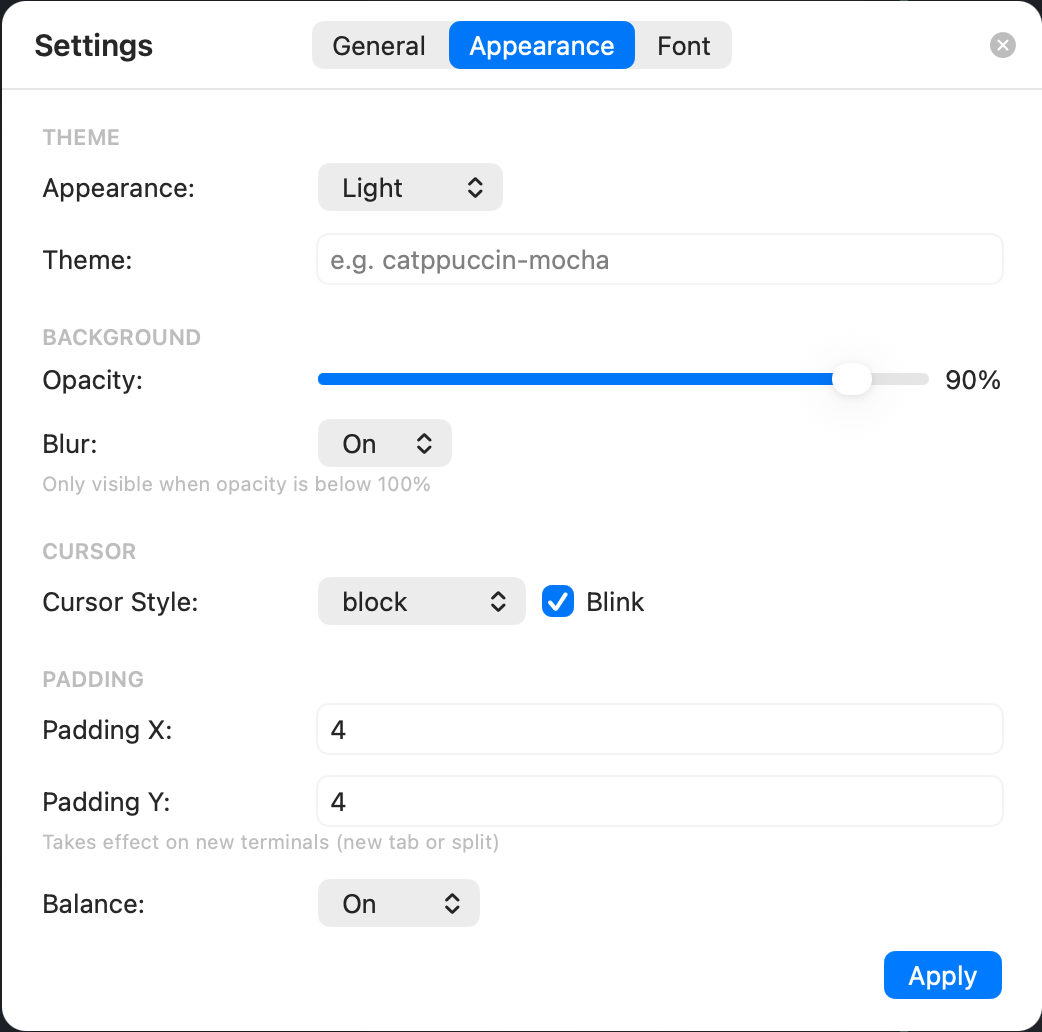
Adjust the visual style of the terminal:
- Theme — choose a built-in color scheme or load a custom one.
- Opacity — set the window background opacity (translucent terminals).
- Blur — apply a background blur effect behind the translucent window.
- Cursor Style — select between block, underline, or bar cursor shapes.
- Cursor Blink — toggle cursor blinking on or off.
- Padding — adjust the inner padding around the terminal content.
- Balance — fine-tune the spacing balance of the terminal view.
Font
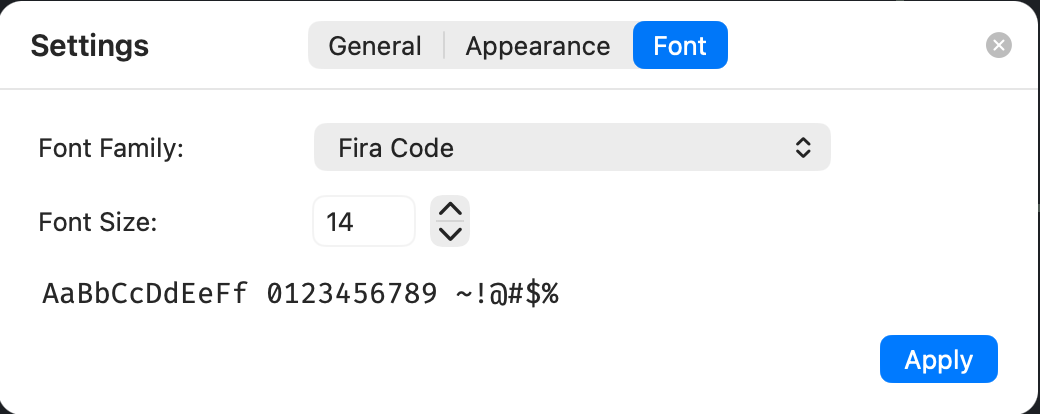
Pick the typeface and size for terminal text:
- Font Family — browse and select from all installed monospace fonts. The picker shows a live preview of each font.
- Font Size — adjust the text size with a slider or direct input.
- Preview — see a real-time sample of the selected font and size before applying.